
Remote MCP with OAuth
Copy the server URL or setup prompt from Settings > MCP, add a remote server named happyfox-aeo, and sign in to AEO to approve access.
Bring AEO’s captured answers, citations, and performance results into the assistant you already use for analysis and reporting.
Connect a remote MCP server with Streamable HTTP and OAuth. Your assistant can read authorized analytics and, with separate permissions, change tracked prompts and competitors. Access follows your organization and brand permissions.
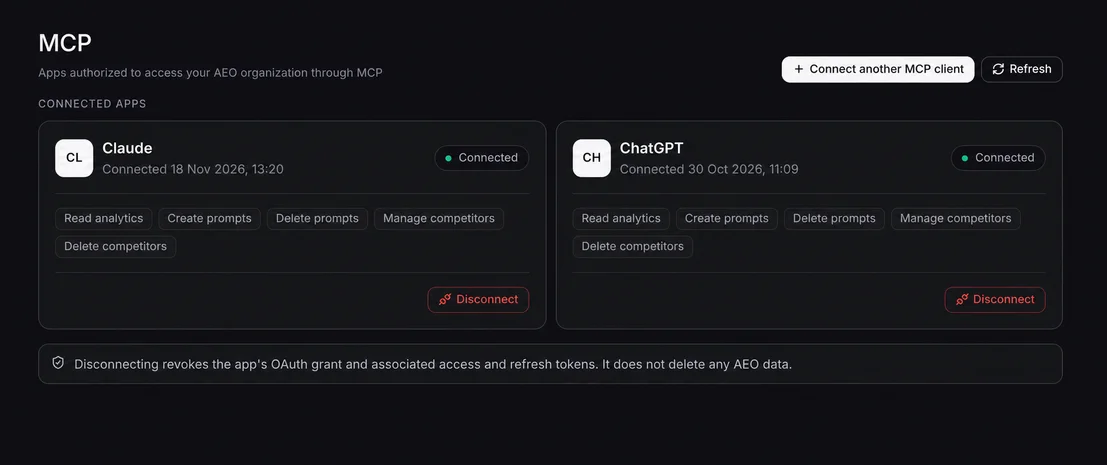
Copy the server URL or setup prompt from Settings > MCP, add a remote server named happyfox-aeo, and sign in to AEO to approve access.
Read analytics gives your assistant access to available brands, answers, citations, and performance. Scan comparisons use the latest and previous fully analyzed scans when available; prompt evidence comes from the latest reported scan.
Grant Create prompts, Delete prompts, Manage competitors, or Delete competitors so an organization owner or Editor can add or remove tracking through the connection, subject to subscription status and available usage.
Manage brand settings, engine selection, scan schedules, team access, and billing in AEO rather than through the assistant connection.
Compare captured answers and cited pages for a buyer question, then ask Claude to draft a brief naming the page to improve, buyer need, and proof to verify.
Follow the Claude workflowCompare the latest scans, inspect the answers behind a change, and ask ChatGPT for a short review covering what happened, what the evidence suggests, and one next action.
Follow the ChatGPT workflowChoose a tracked question where your brand was absent or only mentioned. Compare the captured answers and cited URLs, then identify a page or proof worth improving.
Investigate the answer evidenceReview citation changes after each scan with Grok Bot.
Learn howA connected assistant can compare the latest and previous fully analyzed scans, inspect a tracked question’s latest captured answers, and surface cited pages.

Use an AI client that supports remote Model Context Protocol servers with Streamable HTTP and OAuth. You authorize the connection by signing in to AEO and reviewing the requested permissions.
Read analytics gives access to available brands, performance, answers, citations, and competitor comparisons. With separate permissions, the assistant can create or delete tracked prompts and manage or delete competitors, subject to your role, subscription status, and available usage.
Manage brands, scans, billing, and team access in AEO. Use the app for brand settings, engine selection, and scan schedules rather than the MCP connection.
Open Settings > MCP and copy the setup prompt or server URL. Add a remote MCP server named happyfox-aeo with Streamable HTTP transport and OAuth authentication, then sign in to AEO when the client starts authorization.
In Settings > MCP > Connected apps, select Disconnect on the app and confirm. AEO revokes the app’s access and retains your tracking data. Authorize the client again to reconnect.
The connection provides brand, engine, buyer stage, and competitor results for the latest and previous fully analyzed scans when available. Prompt-level answers and supporting evidence come from the latest reported scan. Ask the assistant to show scan dates, analyzed answer counts, and any differences in prompt or engine coverage. Save a baseline’s answers and citation URLs before a later scan replaces that prompt-level evidence.
Yes. Ask your connected assistant to use AEO’s one-page or comprehensive report template and its HTML layout reference, replacing examples with your scan evidence. The assistant creates and renders the report; available file formats depend on its capabilities. See the MCP capabilities guide for the report and evidence options.