
Describe
Give your agent the launch brief.
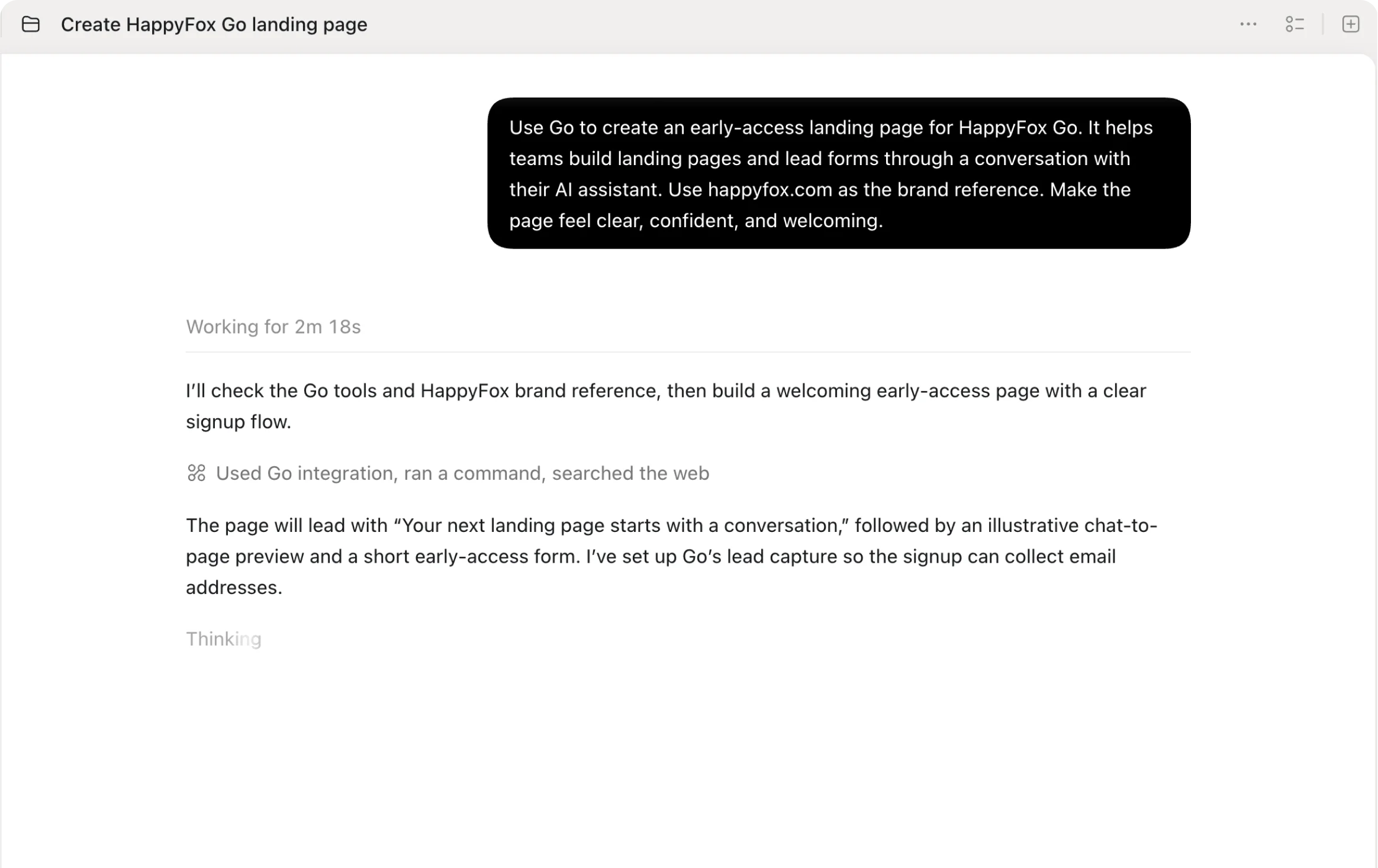
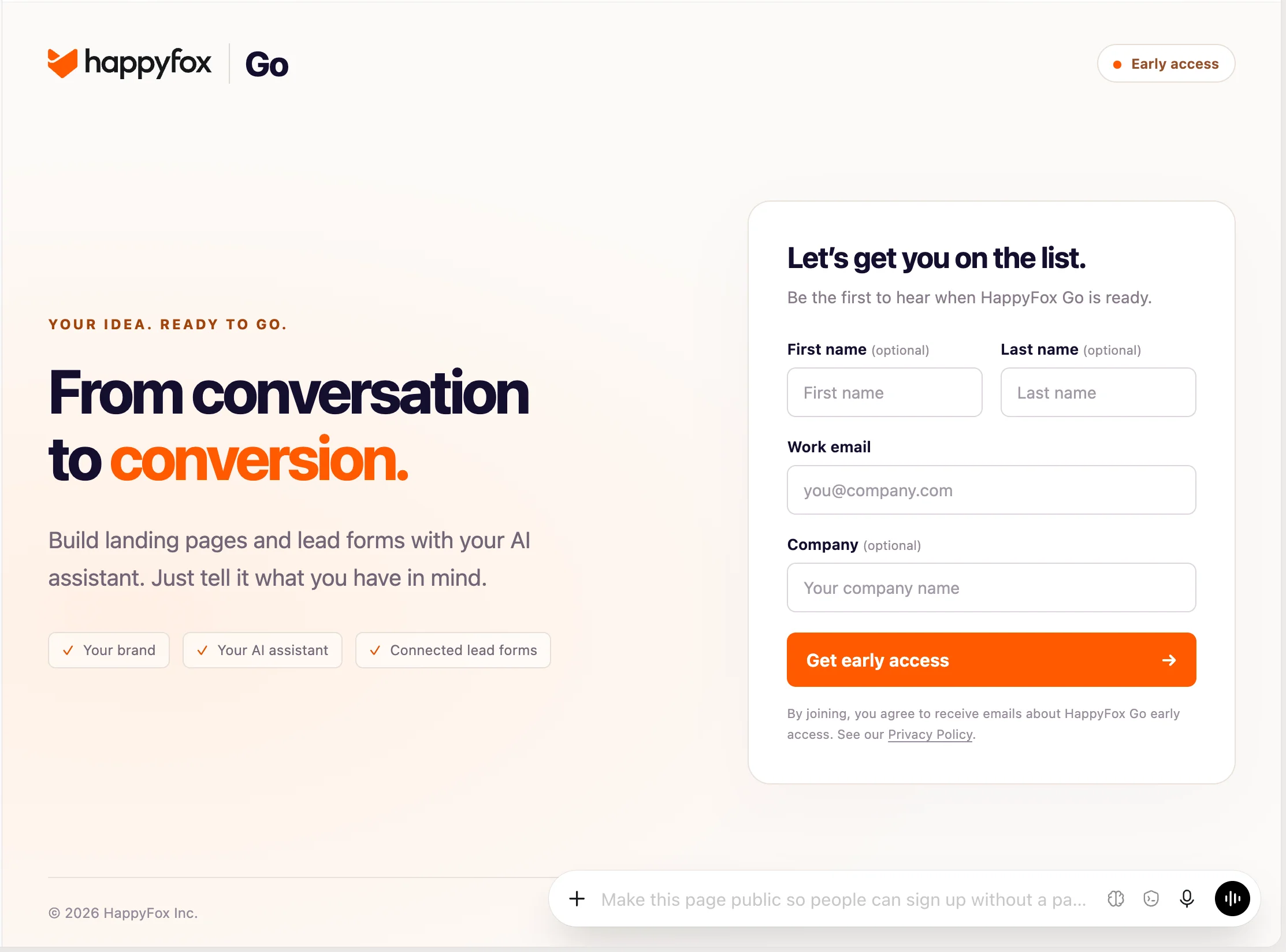
Connect Go through an MCP-capable client such as Codex, Claude Code, or Cursor. Provide your audience, offer, brand website, and form fields.
Describe
Connect Go through an MCP-capable client such as Codex, Claude Code, or Cursor. Provide your audience, offer, brand website, and form fields.
Build
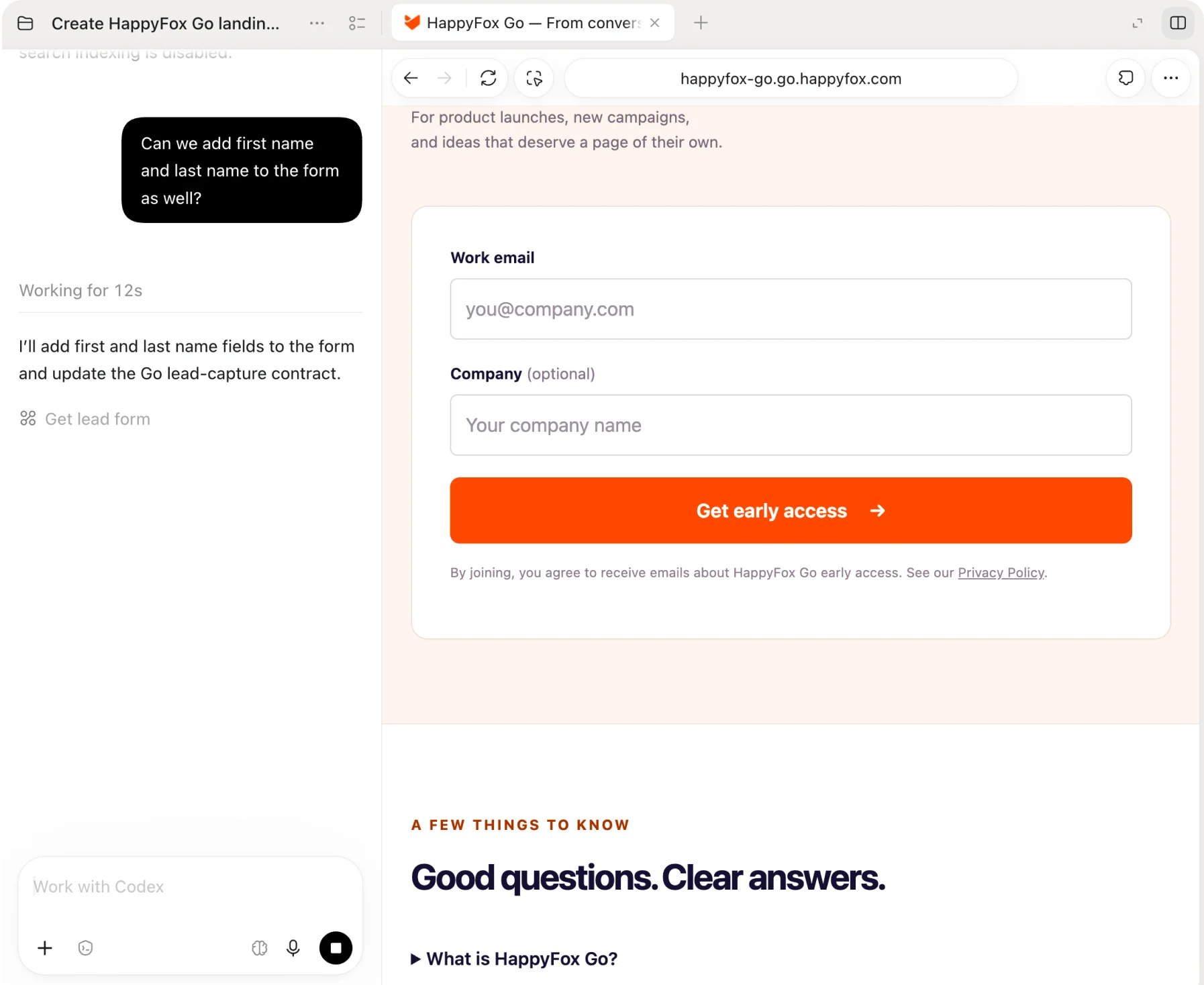
Your agent writes the HTML, CSS, and form experience. Go supplies hosting, submission validation, and lead capture.
Review
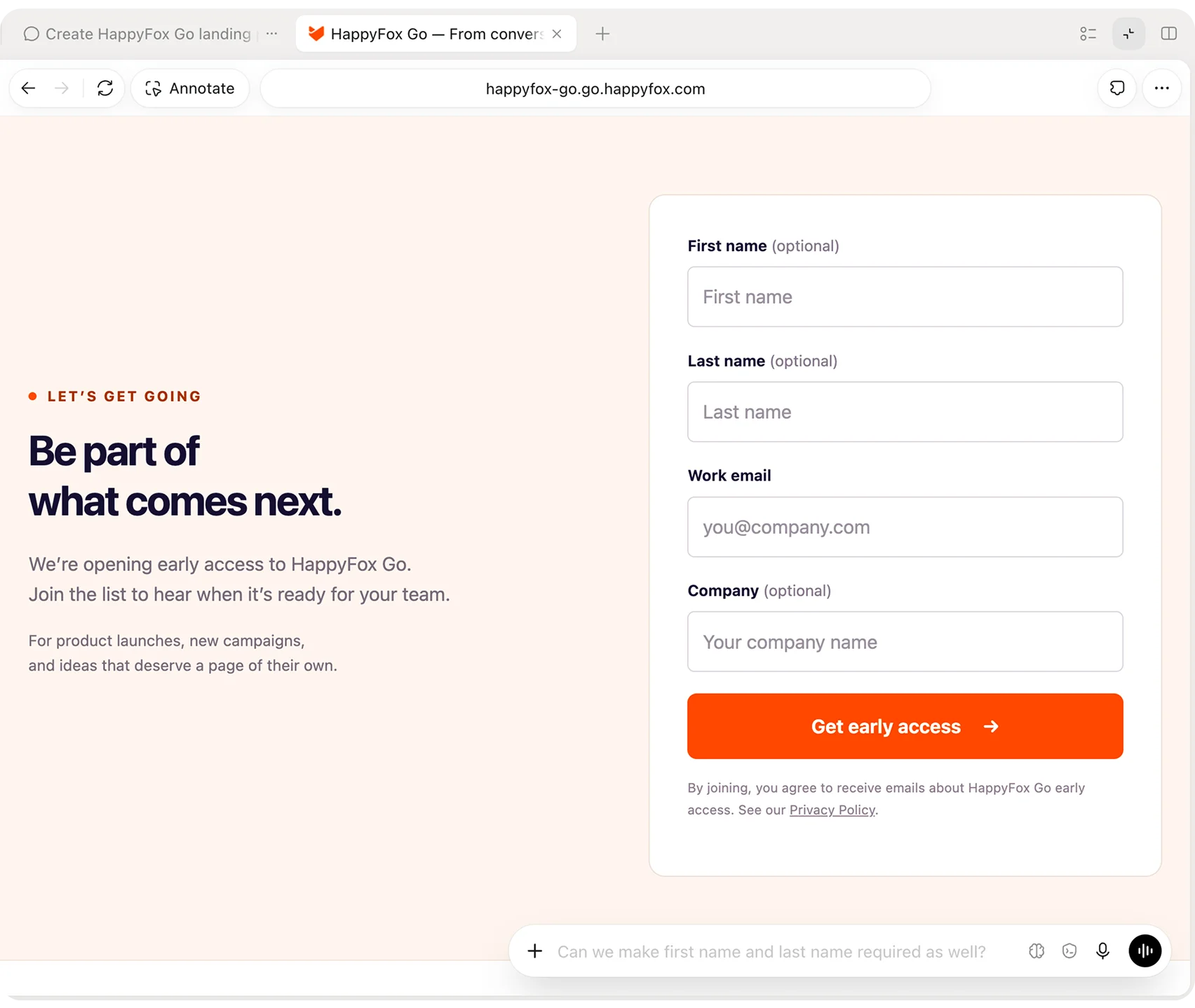
Publish passcode-protected and noindex for review. Public access and search indexing are separate decisions.
Launch
Choose public access when ready. Submit a deliberate test lead, then inspect its captured fields, attribution, and delivery diagnostics.
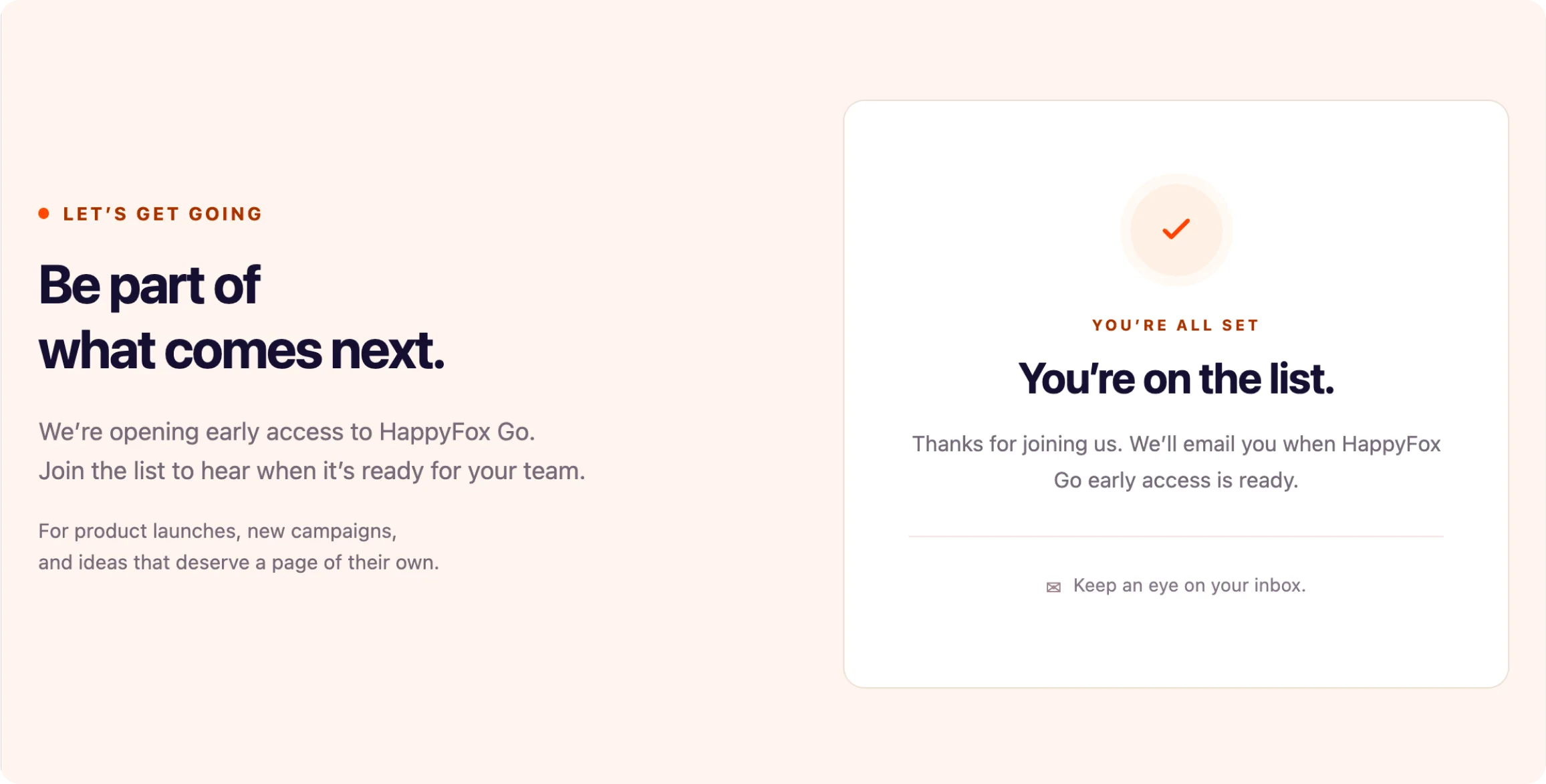
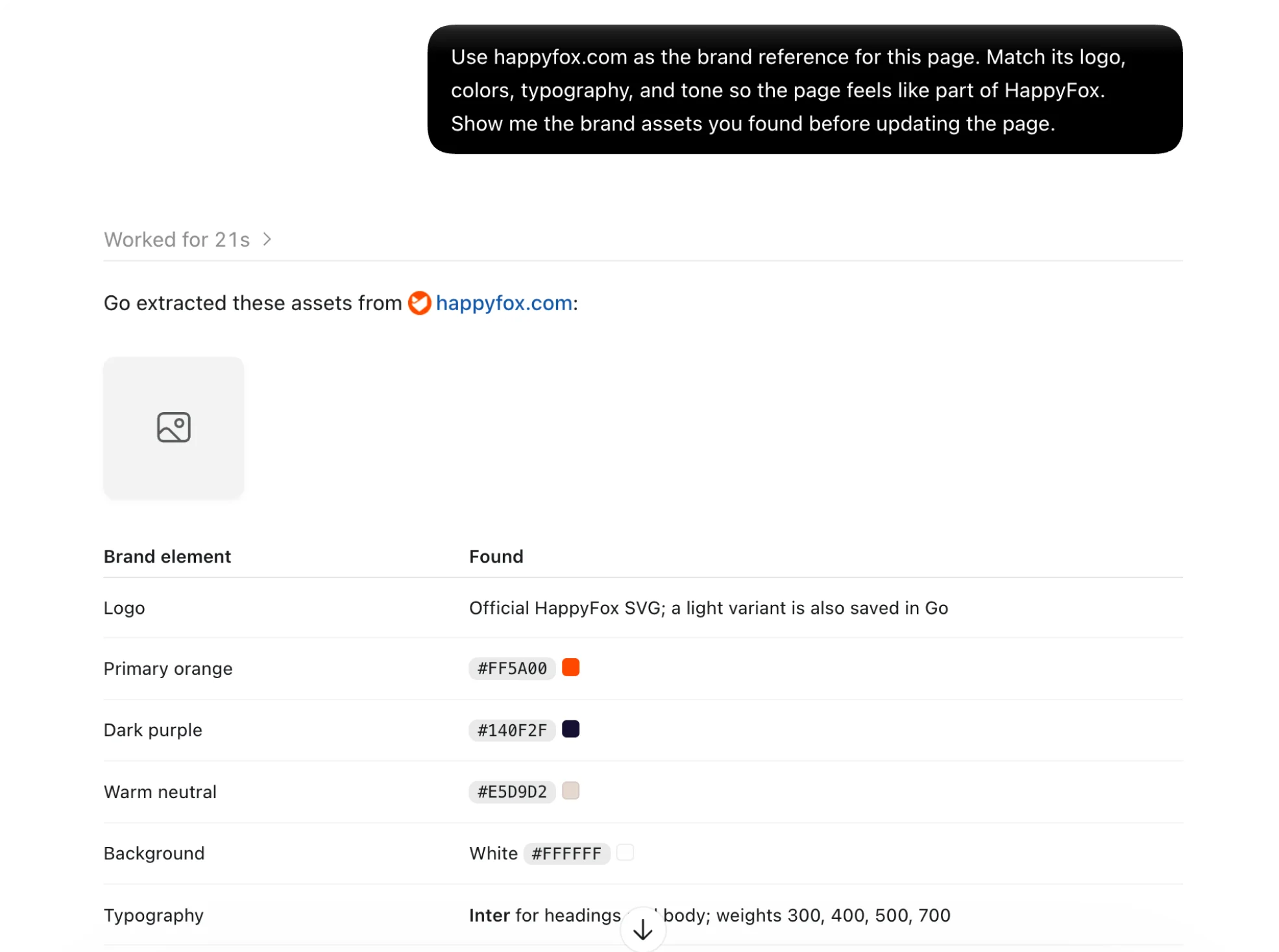
Extract logos, colors, typography, spacing, and component cues from your website. Your agent uses those references to design the page.
Save brand assets for future pages and duplicate a draft for another campaign variation.
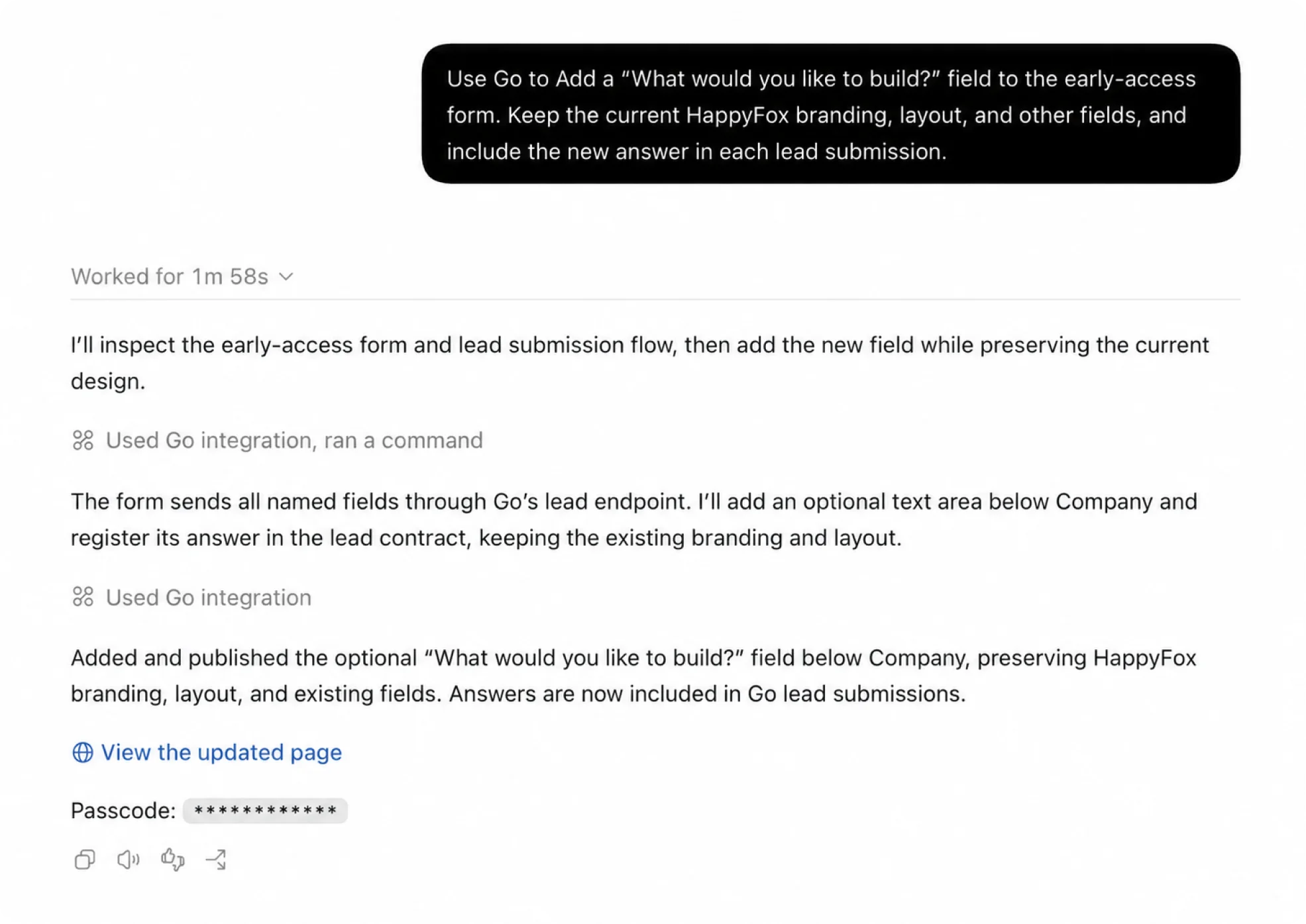
Define required fields and allowed answers for early access, demos, or qualification. Go validates submissions; your agent designs the visitor experience.
Capture campaign parameters, referrers, and supported advertising click identifiers. Keep first campaign touch separate from latest campaign touch.
Publish updates as new versions, restore earlier content, or take a page offline while retaining its published history.
Check whether configured integration sends were delivered, skipped, or failed. Destination acceptance does not guarantee a populated analytics report.
HappyFox Go is a landing-page backend for your AI agent. Your agent writes the design, HTML, CSS, and visitor-facing form. Go hosts published pages, validates submissions, captures leads and attribution, and handles configured delivery and diagnostics.
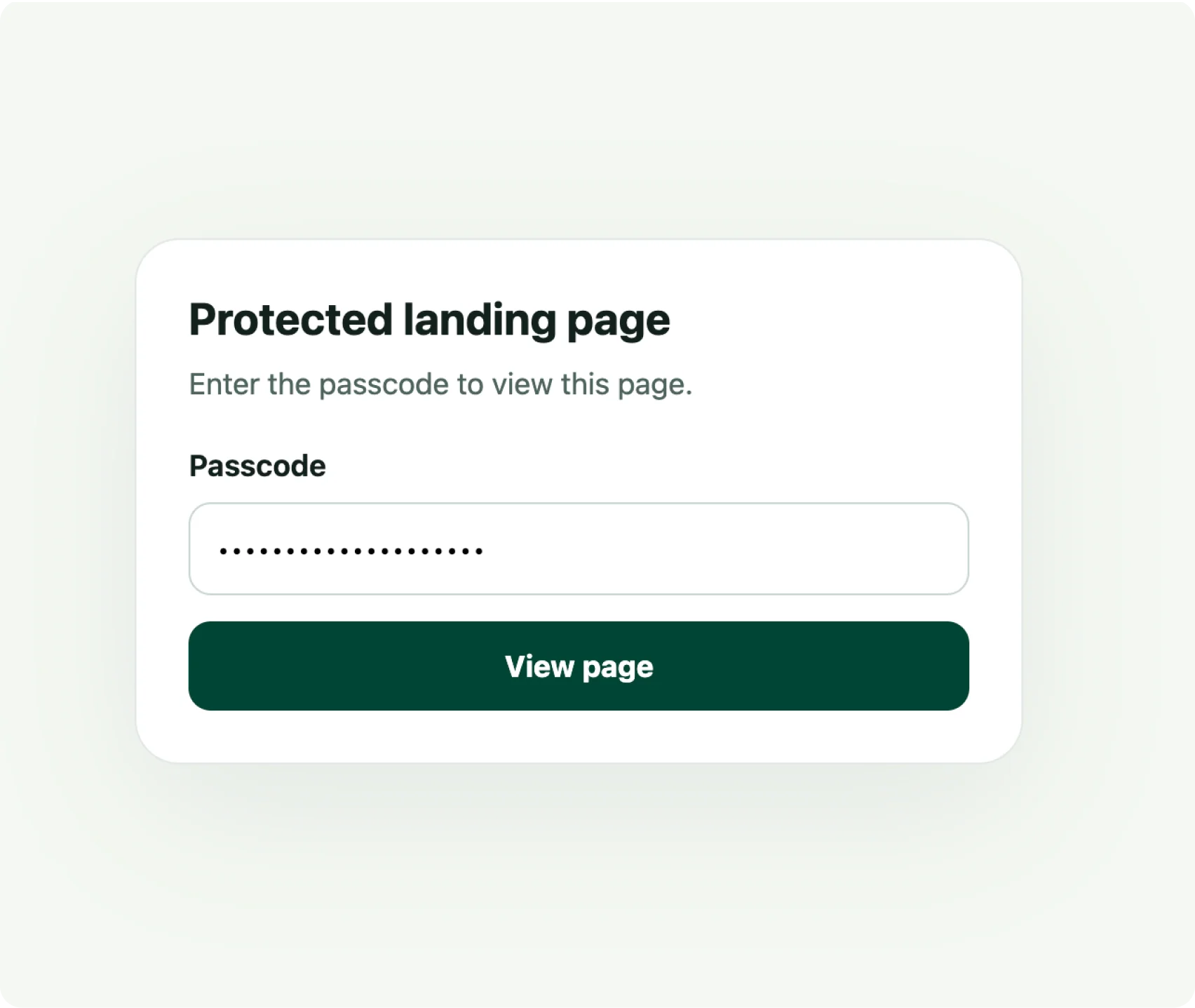
Yes. Publishing defaults to passcode protection and noindex. You can use a shared site passcode or a page-specific passcode, then choose public access and search indexing separately.
Yes. Update the draft and publish a new version. Go keeps published version history and can restore earlier content as a new version.
Go supports PostHog, Google Analytics 4, CookieYes, Google Ads offline conversion CSV exports, and HappyFox CRM Deal Intake. Delivery depends on destination configuration and the required consent, identity, or attribution.
No. Go generates eligible offline conversion CSV files for manual upload. It does not create Google Ads conversion actions.
On CookieYes-managed sites, lead capture and operational CRM handoff continue. Managed GA4 and PostHog scripts and backend conversion delivery require recorded Analytics consent; Google Ads exports require recorded Advertisement consent.
Configure a HappyFox CRM Deal Intake endpoint and explicitly map extra form answers to existing Deal custom fields. CRM matches or creates Accounts and Contacts and creates Deals. Go exposes delivery diagnostics; CRM lifecycle updates do not sync back to Go.
Go is operated through MCP tools. Connect an MCP-capable agent such as Codex, Claude Code, or Cursor to author the page and perform setup, publishing, and inspection.