













Define Your Team's Availability. Deliver Support on Your Terms.











SLAs Ticking When No One's Working?
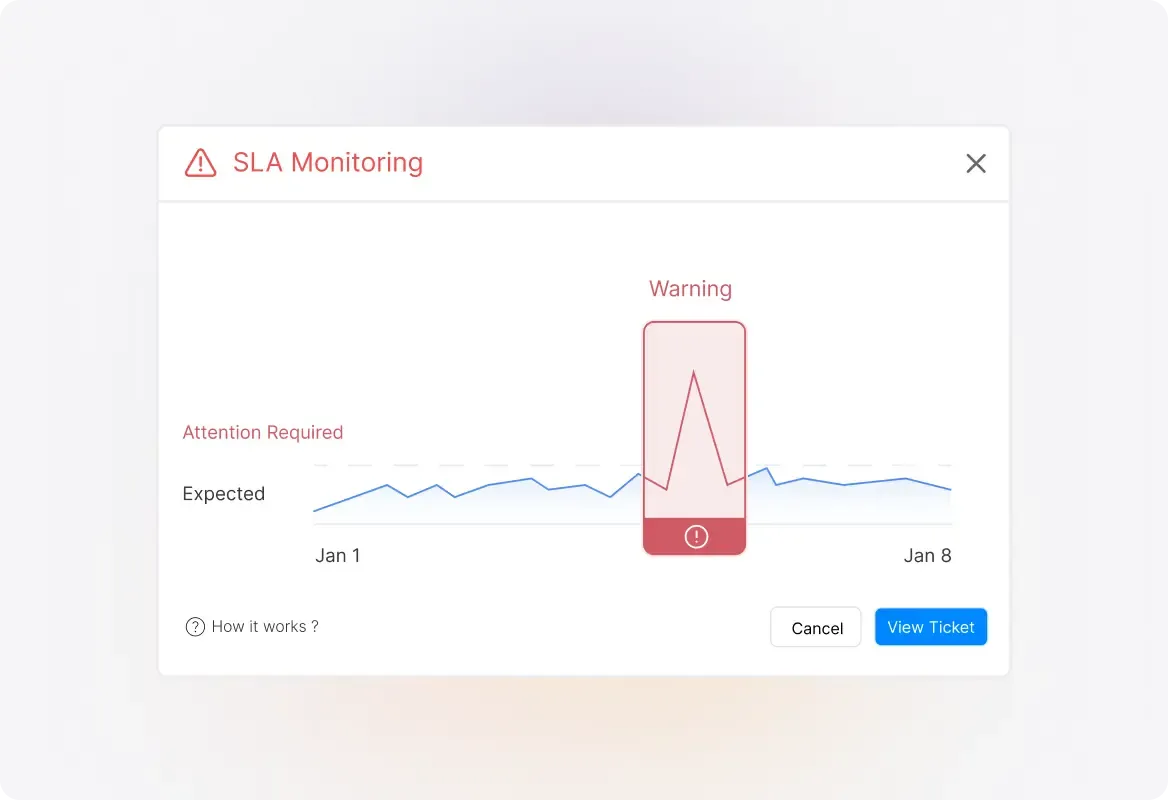
When your SLA timers keep running during nights, weekends, and holidays, your team gets penalized for time they weren't even at their desks. HappyFox Work Schedules let you define exactly when your support team is available—so time-based rules and SLAs only count the hours that matter.
What are Work Schedules in HappyFox?
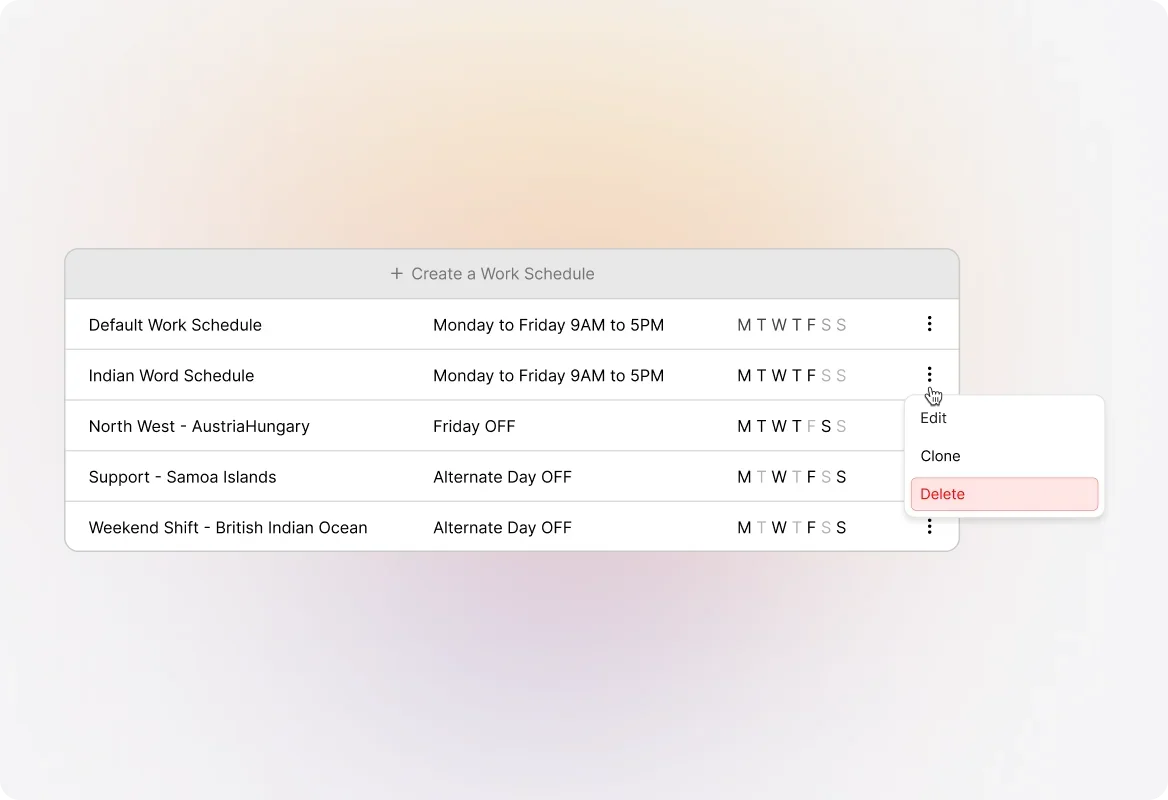
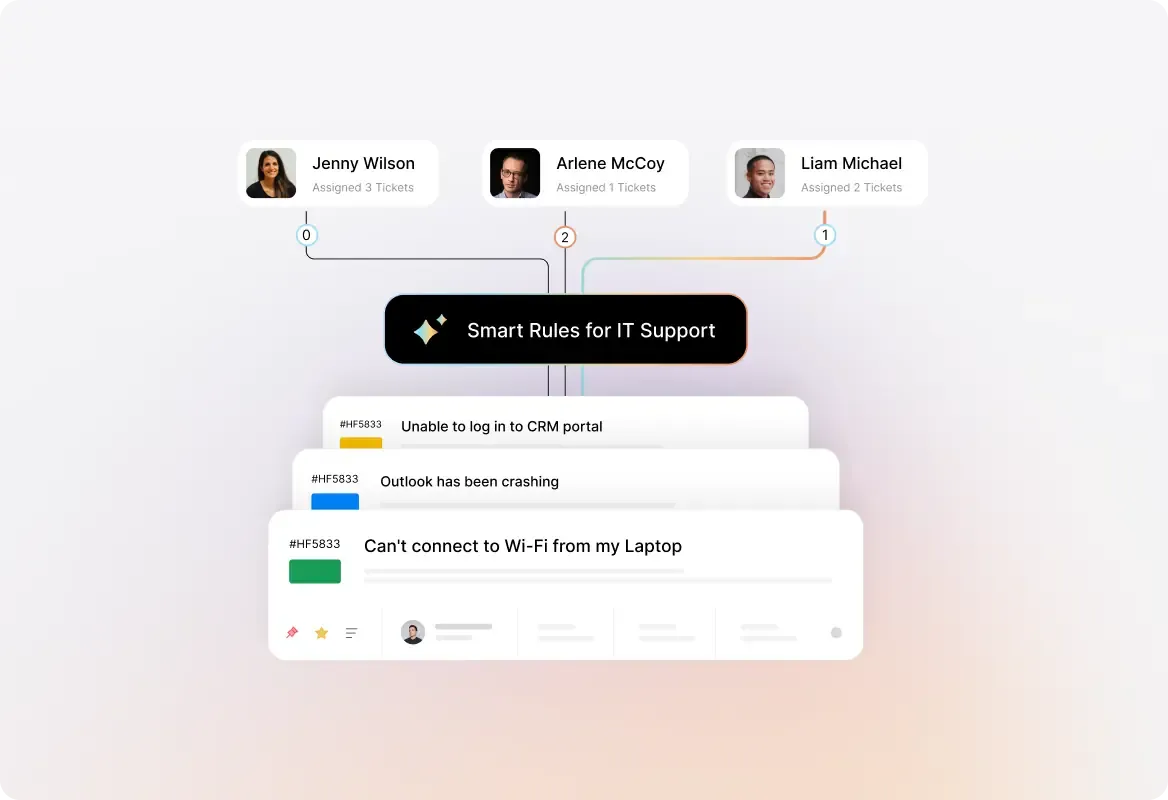
Work Schedules help you clearly define the work timings of your support team. You can configure multiple schedules based on your team setup, then include them in SLAs or Smart Rules to exclude non-working hours when calculating time-based conditions.
Multiple
Schedules Supported
Configure different schedules for different teams or shifts.
100%
SLA Accuracy
Time-based conditions only count actual working hours.
Zero
Manual Adjustments
Holidays and off-hours are automatically excluded.
Set Schedules. Exclude Off-Hours. Keep SLAs Fair.
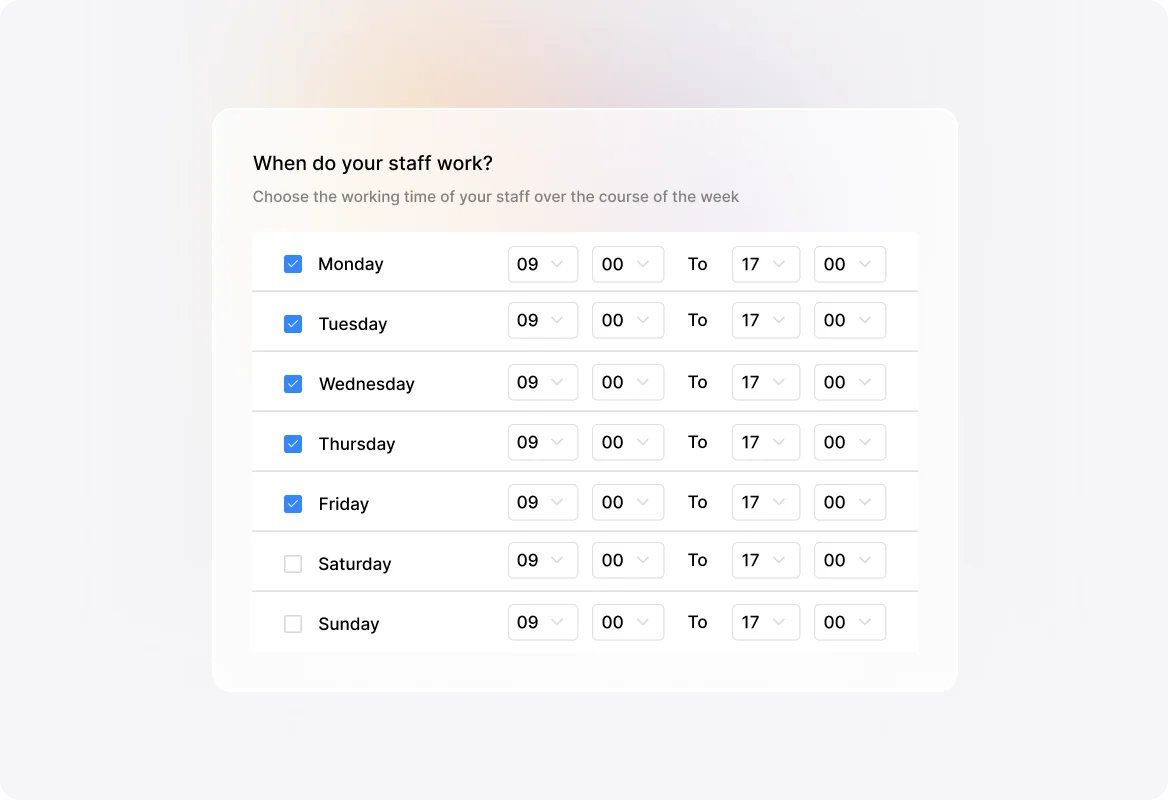
Create Custom Work Schedules
Define your team's availability with precision. Choose work timings for each day of the week, set the applicable time zone, and give each schedule a clear name and description for easy management.
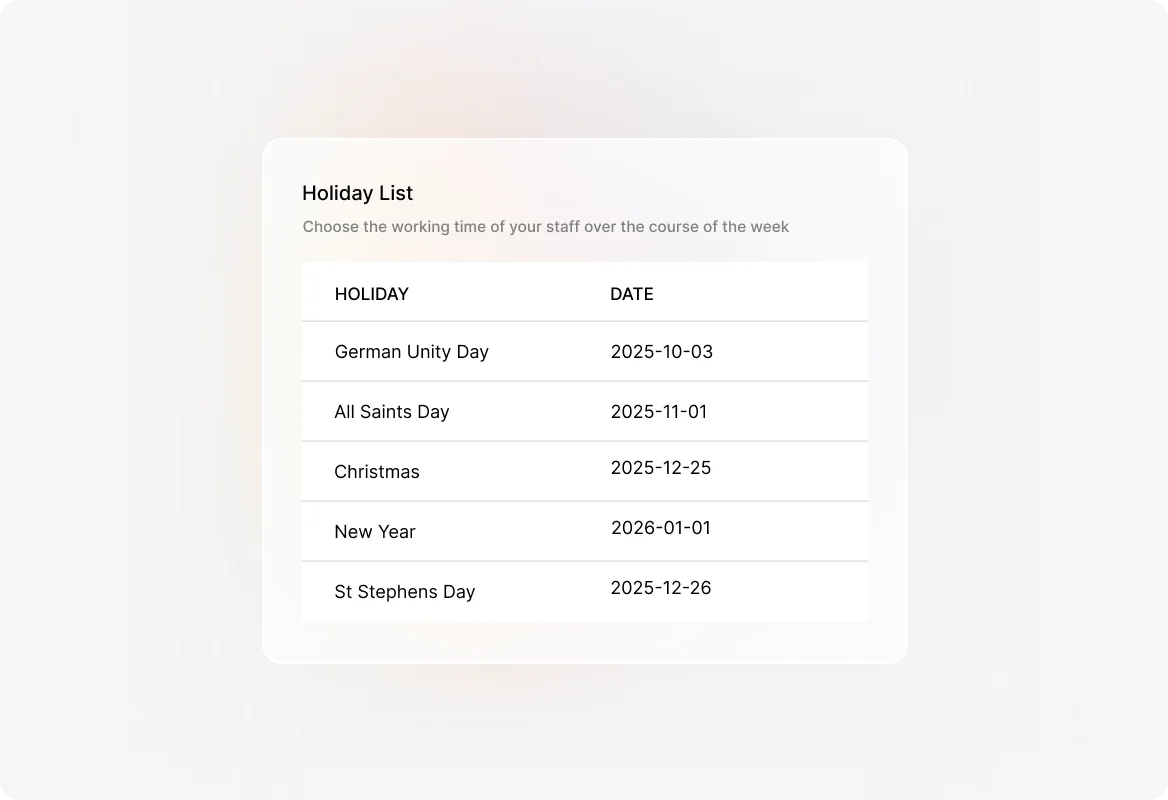
Manage Holidays and Time Off
Add public holidays and pre-declared days off to your work schedules. When your team isn't working, HappyFox automatically excludes those hours from time-based calculations—no manual adjustments needed.
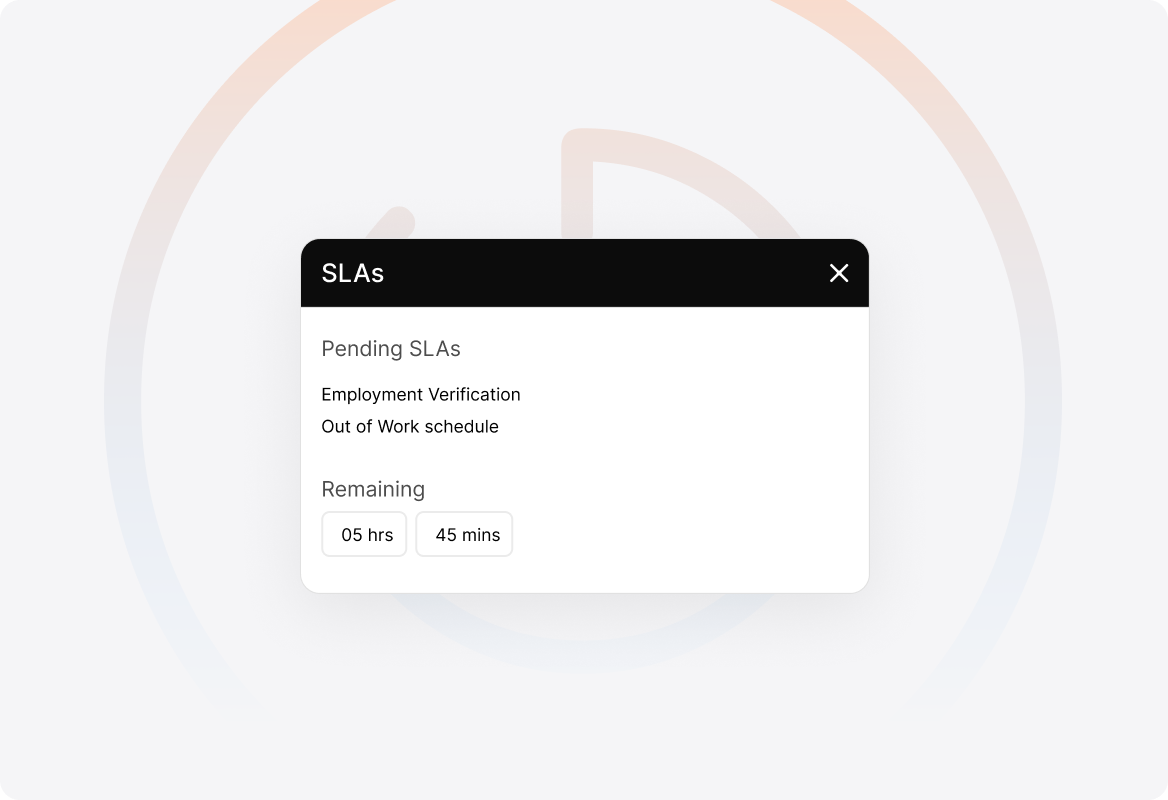
Integrate with SLAs and Smart Rules
Connect your work schedules to SLAs and Smart Rules to ensure time-based conditions only count working hours. Response and resolution timers pause when your team is off the clock.
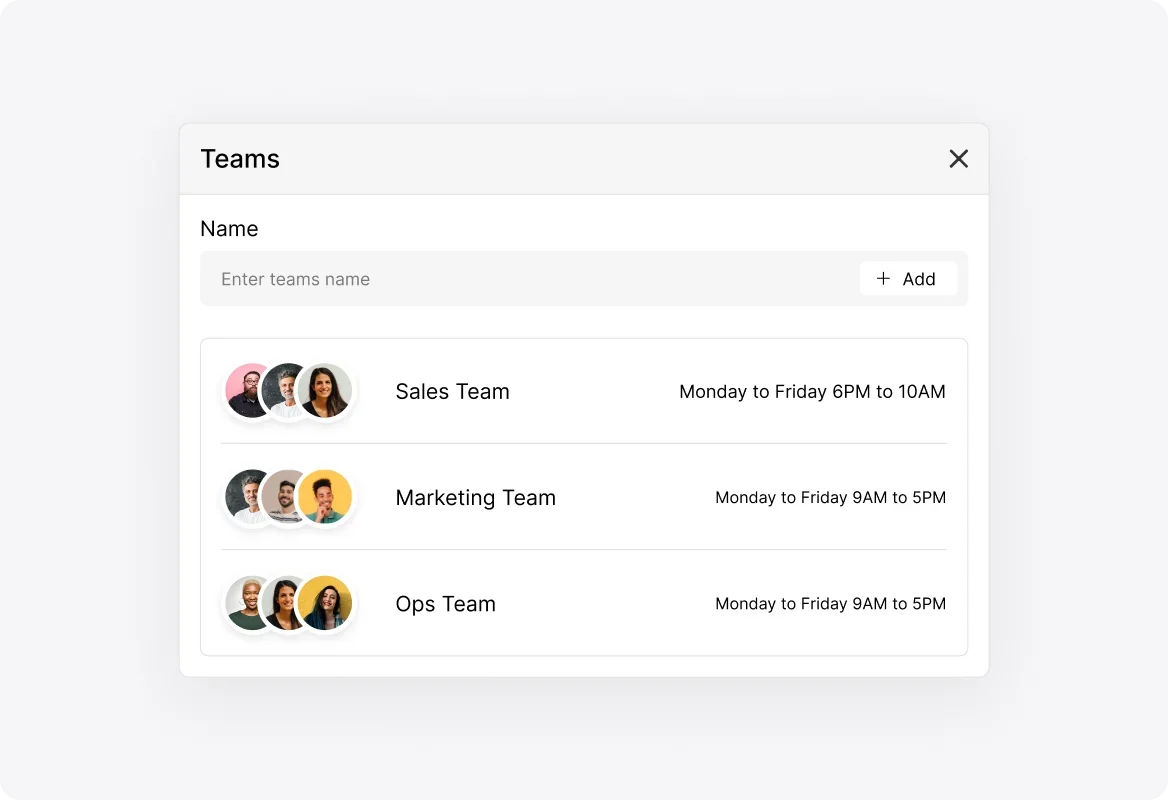
Multiple Schedules for Different Teams
Running a global support team or multiple shifts? Create separate work schedules for each team or region, ensuring accurate time tracking across your entire operation.
Easy Schedule Management
View, edit, clone, or delete work schedules anytime. The Details Sidebar gives you quick access to all schedule information, making updates a breeze.
Explore Other HappyFox Help Desk Features
FAQ's

Define Your Hours. Protect Your SLAs. Support Smarter.
Set up work schedules that reflect your team's real availability and keep time-based rules fair and accurate.

Use Cases
For Business Type
For Industries


Copyright ©2026 HappyFox Inc. All rights reserved.