
Trusted by Industry-Leading Companies




The problem
“Traditional ticket lists make it hard to see the big picture. Support managers struggle to track ticket progress, identify bottlenecks, and balance workloads when everything looks like an endless spreadsheet.”
HappyFox Kanban View transforms your ticket queue into a visual board, giving your team instant clarity on what needs attention and where every ticket stands.
What kanban view makes possible.
- Segmentation Options
- 4
- Visual Clarity
- 100%
- Ticket Updates
- 1-Click
Organize by Status, Priority, Assignee, or Due Date
See your entire queue at a glance
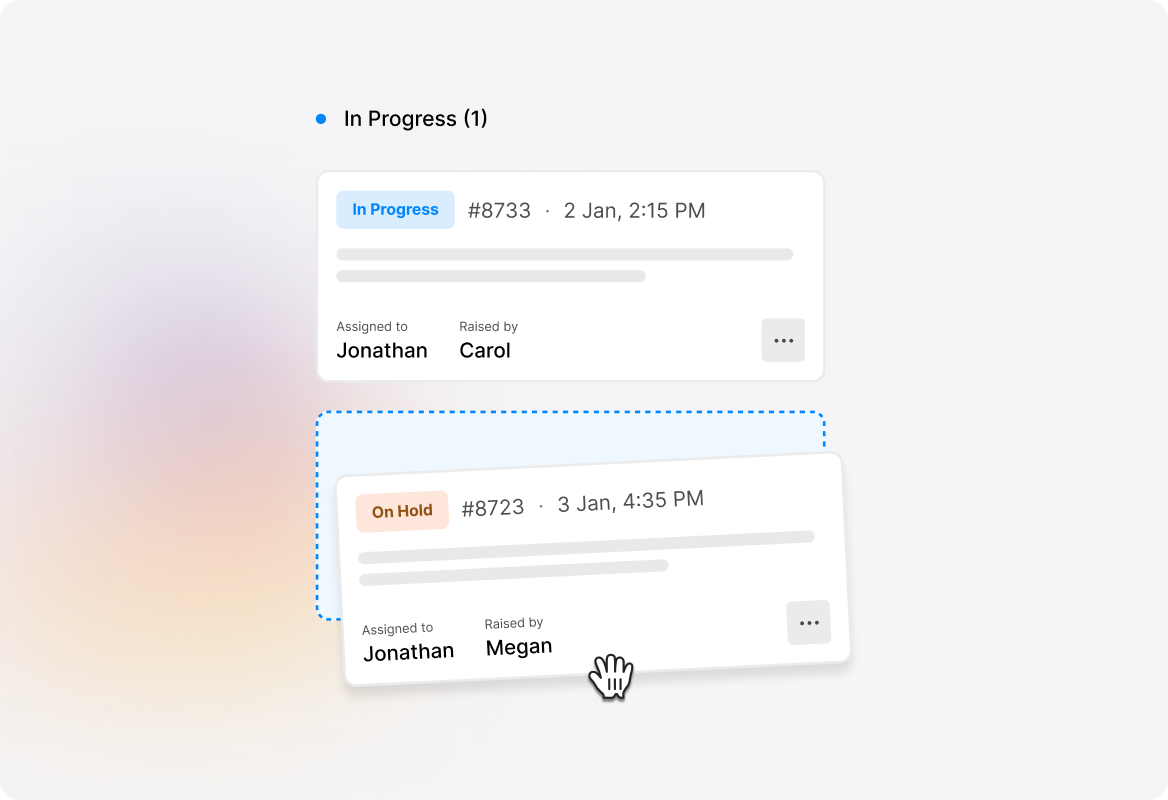
Drag and drop to instantly update ticket properties
Track Ticket Progress Instantly
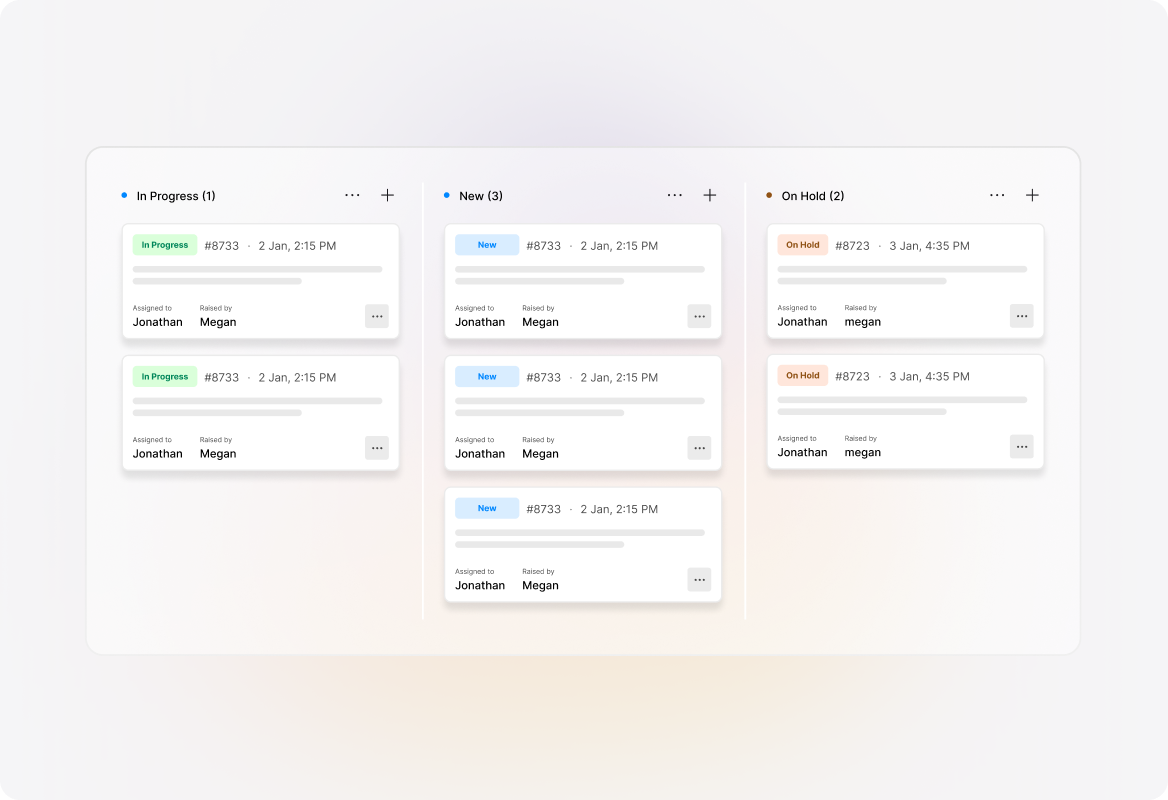
See exactly where every ticket stands in your workflow. Columns represent statuses in order, so you can instantly identify which tickets are new, in progress, or waiting for customer response. Drag tickets between columns to update their status automatically.
Focus on What Matters Most
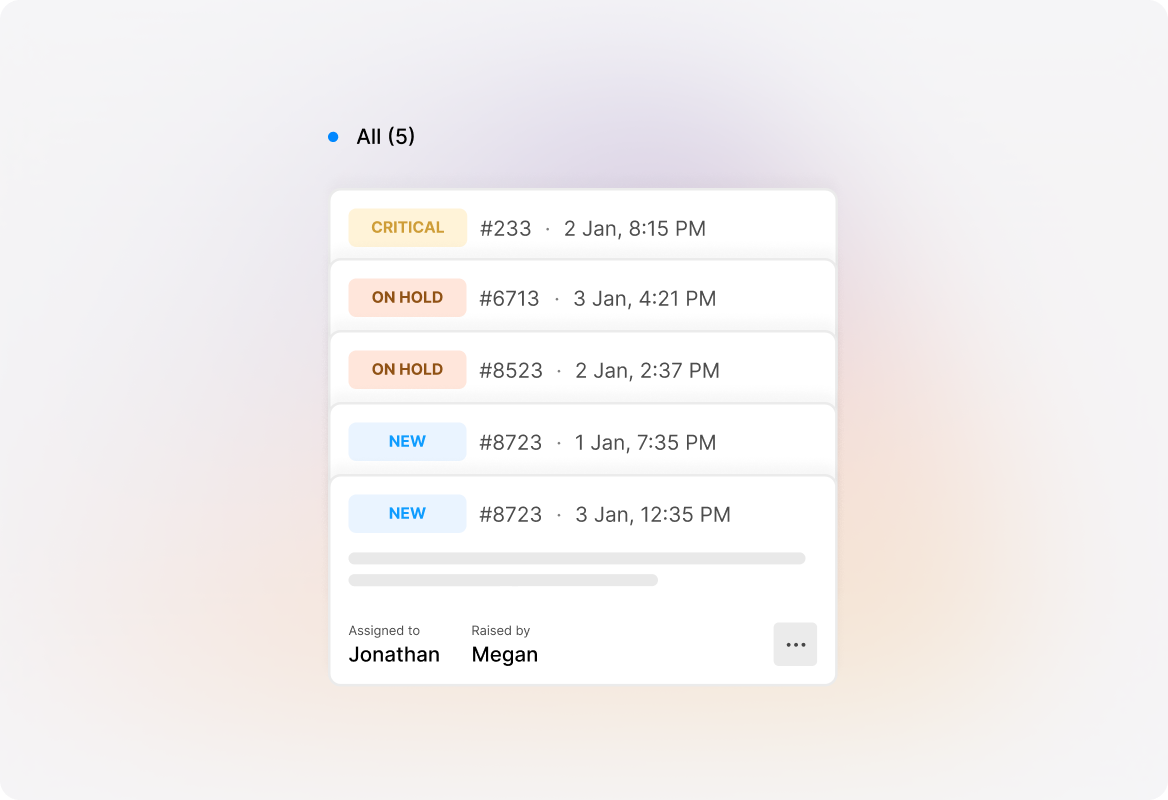
Columns represent ticket priorities in descending order—highest priority first. Quickly spot urgent issues that need immediate attention and ensure critical tickets never get buried in the queue.
Balance Workloads Across Your Team
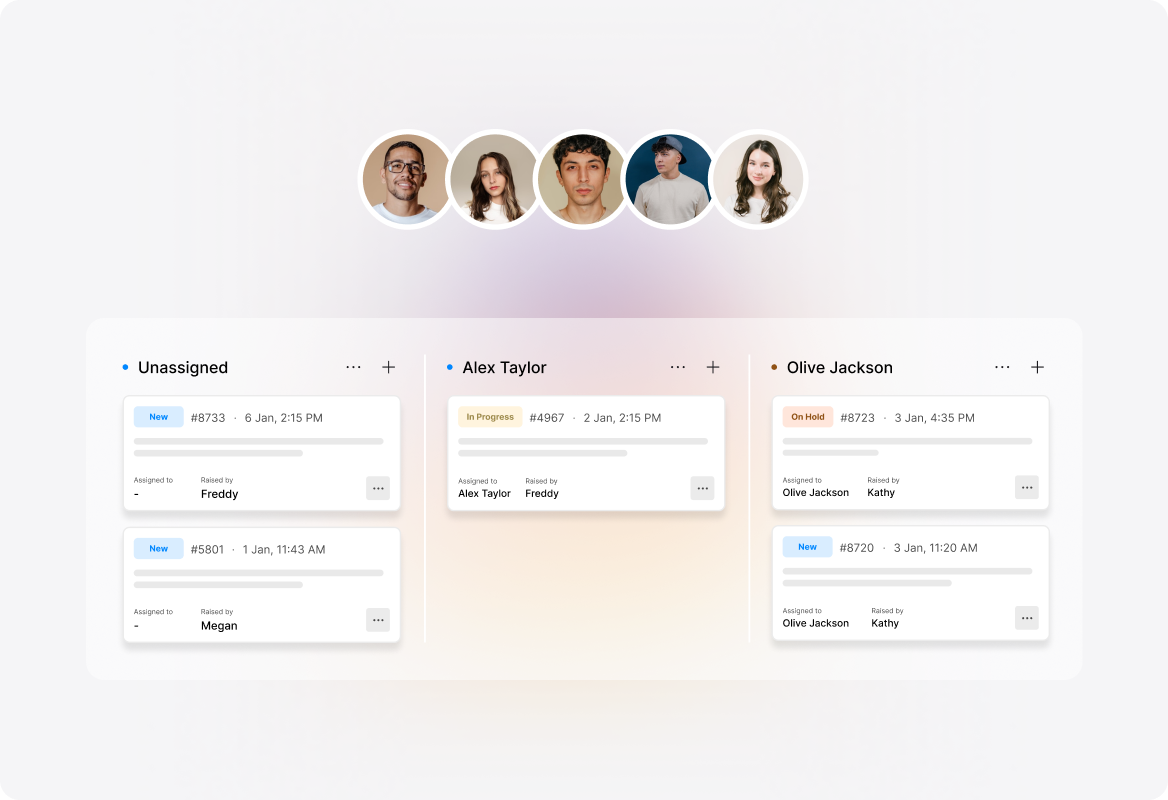
Each column represents an agent (listed alphabetically) with an additional column for unassigned tickets. See at a glance who's overloaded and who has capacity, then drag tickets to reassign them instantly—if you have the "Assign Tickets" permission.
Never Miss a Deadline
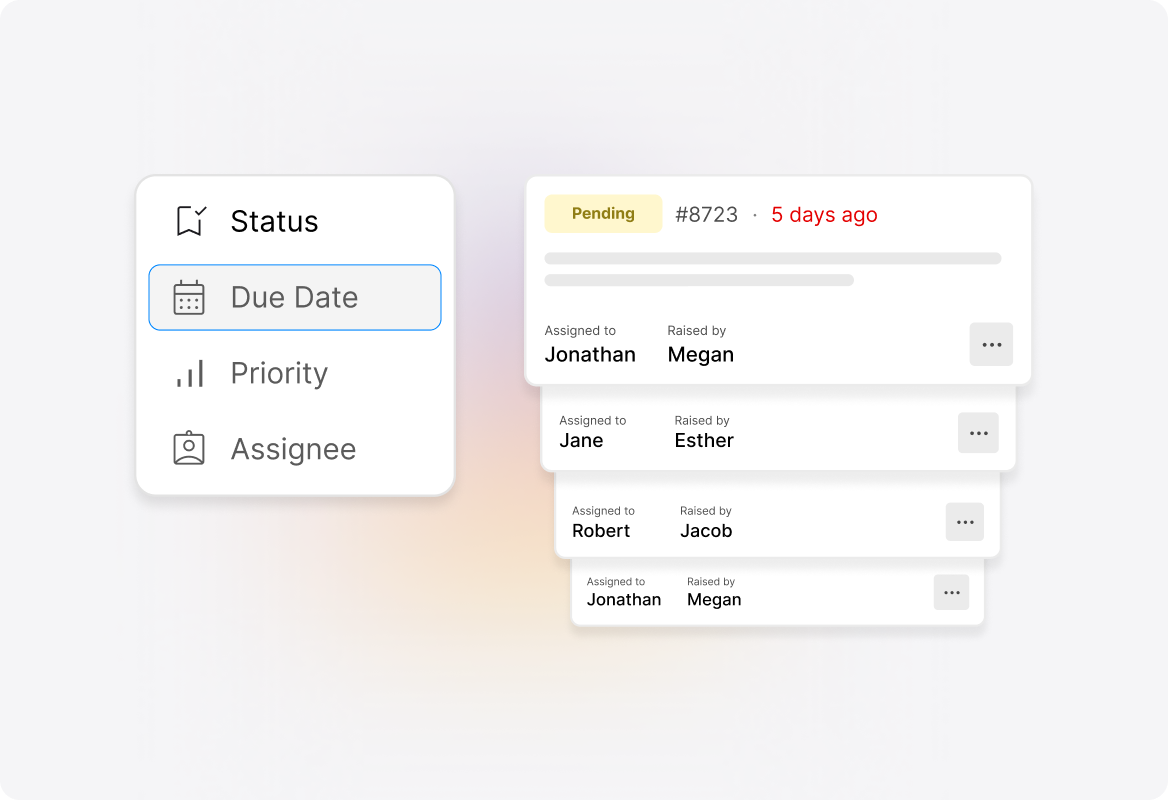
Columns represent due dates in chronological order, making it easy to spot tickets approaching their SLA deadlines. Keep your team focused on time-sensitive issues and protect your service level commitments.
Update Tickets Without Opening Them
Move tickets between columns with a simple drag-and-drop action. The ticket's corresponding property updates automatically—no need to open each ticket individually. If an error occurs, the ticket reverts to its original position, so you never lose track.
Set It and Forget It
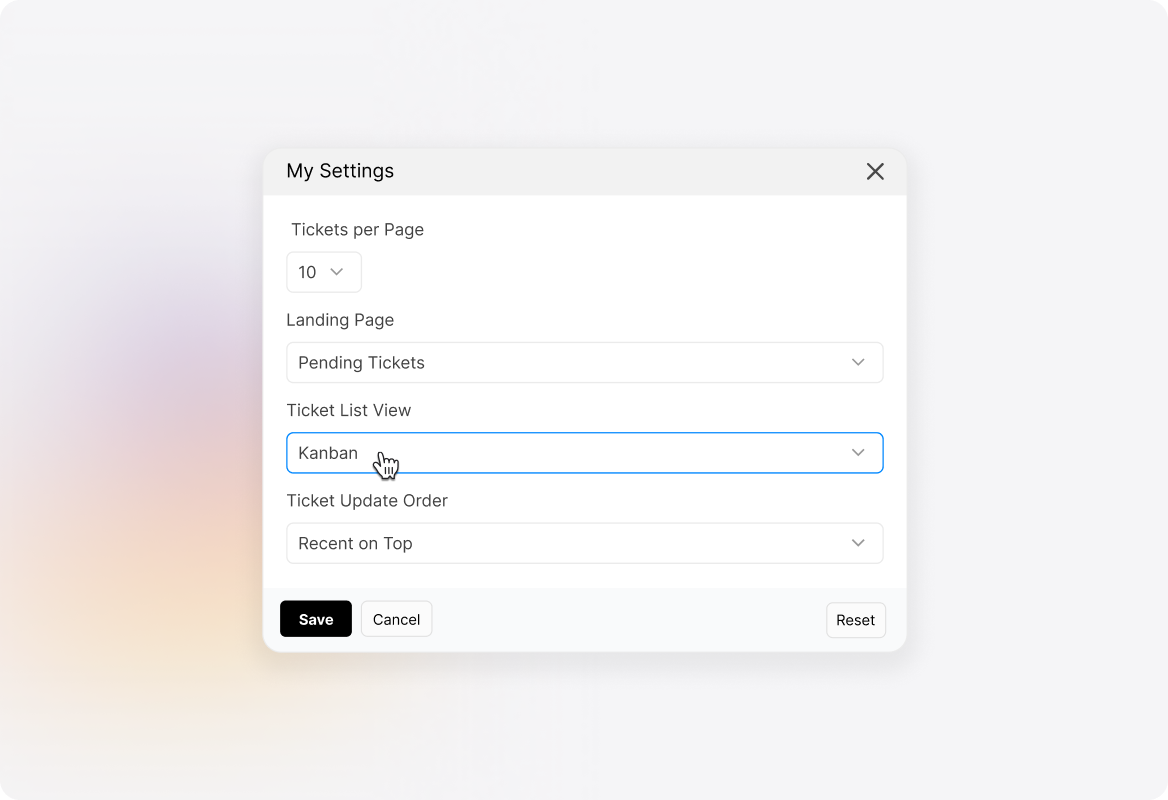
Love the Kanban view? Make it your default. Go to Profile → My Settings → Ticket Preferences and choose Kanban from the ticket list view dropdown. Every time you open your ticket list, you'll see your visual board ready to go.
Frequently asked questions.
How to switch to Kanban View in HappyFox?
You can access Kanban View from the ticket list page by clicking the View Switcher at the top right and selecting Kanban View Mode. Alternatively, you can also set it as your default view in the ticket preferences settings.
What segmentation options are available in Kanban View?
Kanban View offers four segmentation options: Status (columns in increasing order), Priority (columns in descending order with highest first), Assignee (columns alphabetically with an Unassigned column), and Due Date (columns in chronological order).
Can I move tickets between columns using drag-and-drop?
Yes! Simply drag a ticket from one column to another, and the ticket's corresponding property (status, priority, or assignee) updates automatically. Note: Drag-and-drop is not available in Due Date mode, and Assignee mode requires the "Assign Tickets" permission.
What happens if there's an error when I drag a ticket?
If an error occurs during the drag-and-drop action, the ticket will automatically revert to its original position, ensuring you never lose track of where tickets belong.
Are ticket positions within a column saved?
Ticket positions within a column are not retained when the page is refreshed. The order resets based on the default sorting criteria.