
Trusted by Industry-Leading Companies




The problem
“As ticket volumes grow, finding and grouping related issues becomes a challenge. Without a clear labeling system, tickets get lost, patterns go unnoticed, and reporting becomes guesswork. Ticket Tags give your team a simple yet powerful way to label, filter, and track tickets turning chaos into clarity.”
Ticket Tags are a powerful way of labeling and grouping tickets. Use them for queue and filter conditions, automation workflows, and generating reports—all from a simple tagging system.
What ticket tagging makes possible.
- To Add Tags
- 3 Ways
- Tag Management
- 5 Actions
- Flexibility
- 100%
Manual, Canned Actions, or Smart Rules
Create, Rename, Merge, Detach, Delete
Use tags in filters, automations, and reports
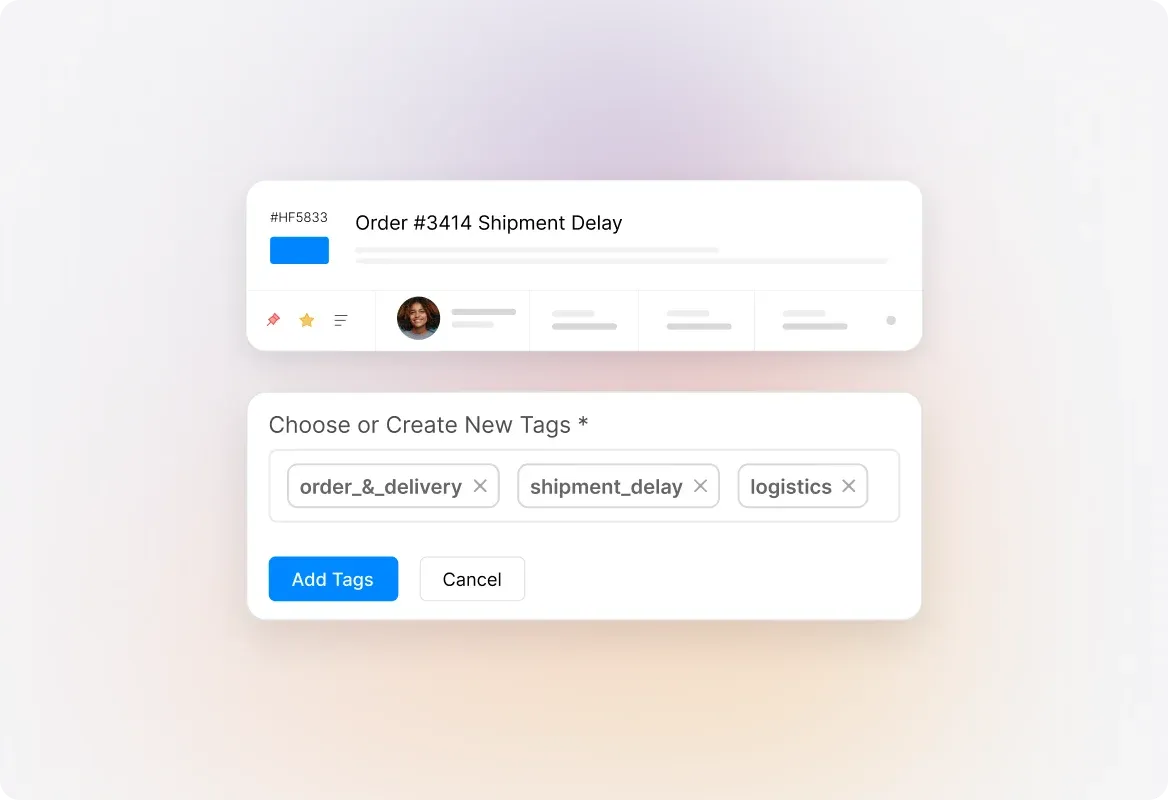
Add Tags Manually
Need to tag a ticket on the spot? Simply add relevant tags directly from the ticket details page. Separate multiple tags with commas and you're done—quick, easy, and flexible for any situation.
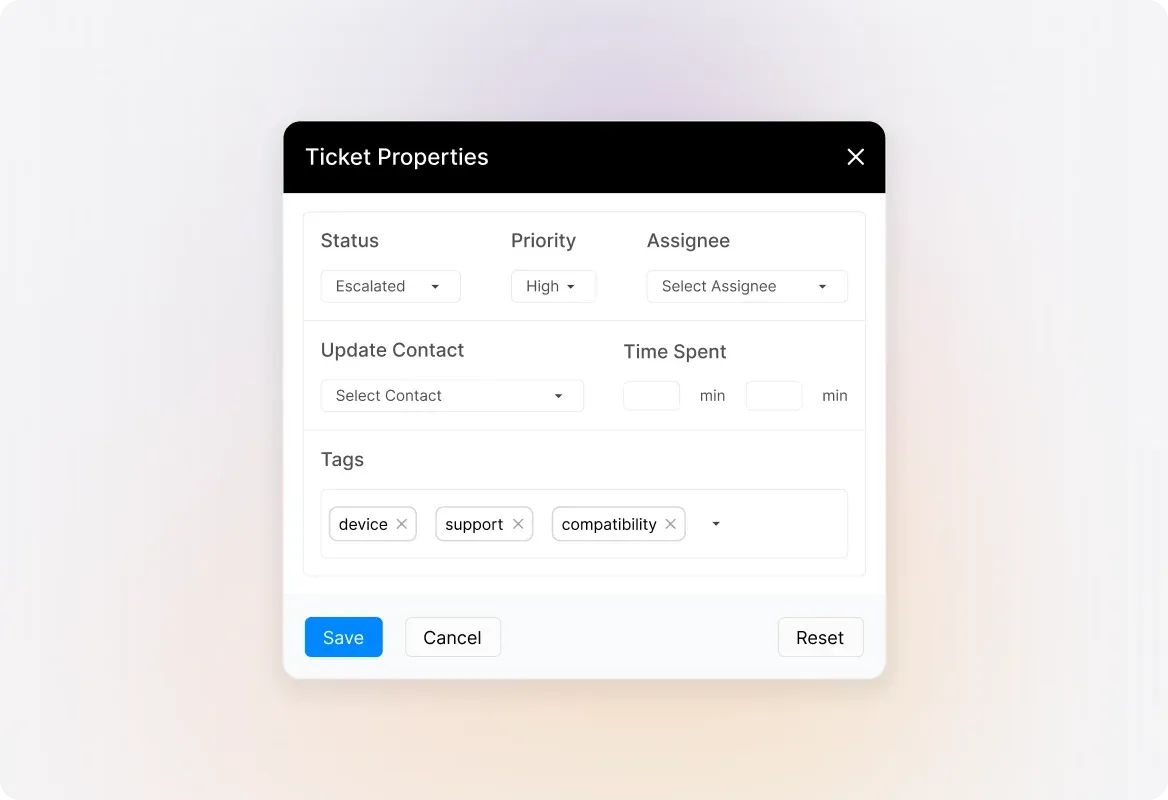
Automate Tags with Canned Actions
Save time by embedding tags into your canned actions. Every time an agent applies a canned response, the associated tags are automatically added to the ticket—no extra steps required.
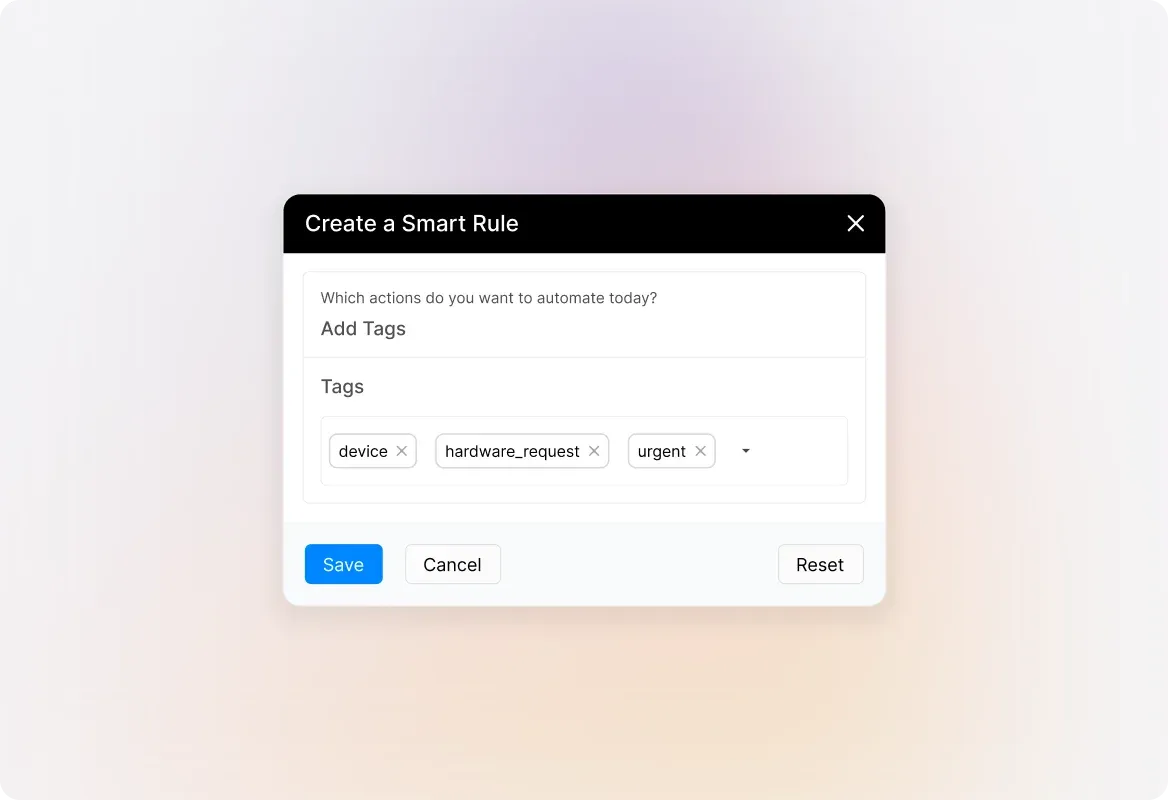
Tag Tickets with Smart Rules
Let automation handle the heavy lifting. Set up Smart Rules to automatically tag tickets based on conditions like category, priority, or keywords. Tickets get labeled the moment they arrive—zero manual effort.
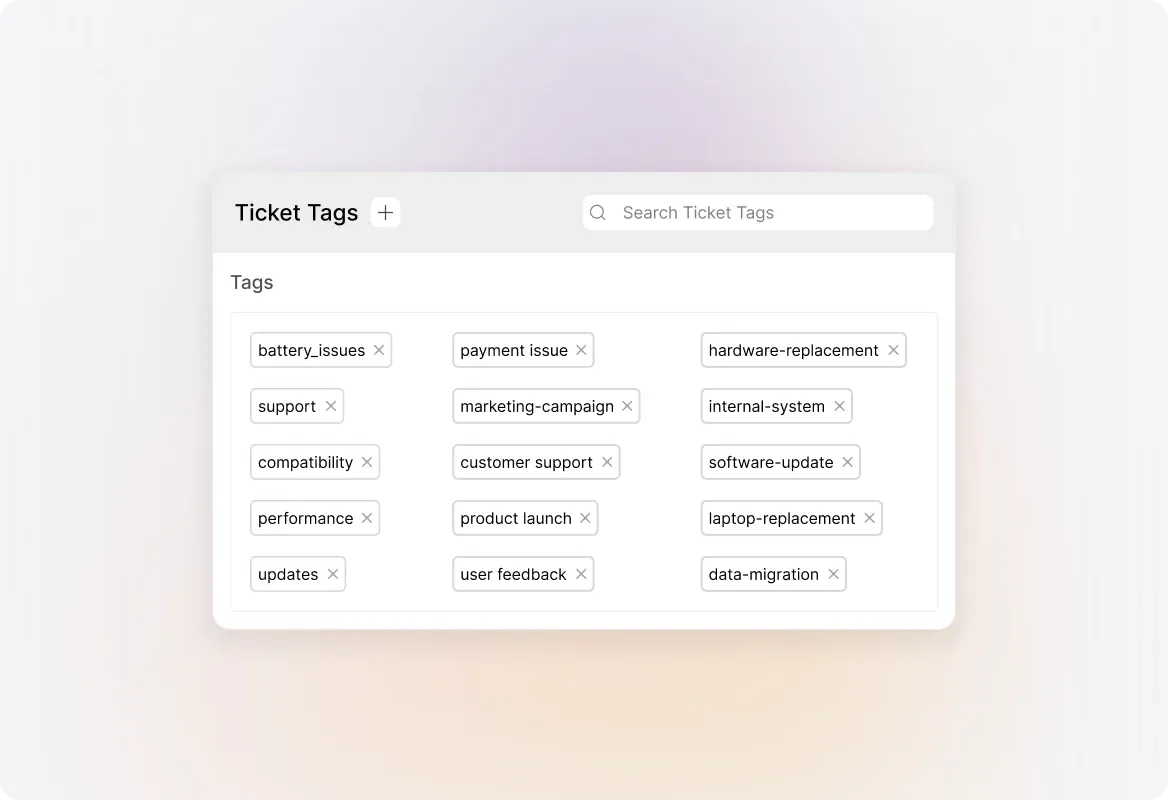
Full Tag Management
Stay in control of your tagging system. Create new tags, rename existing ones for clarity, merge duplicate tags to consolidate, detach tags from specific tickets, or delete tags you no longer need. Complete flexibility at your fingertips.
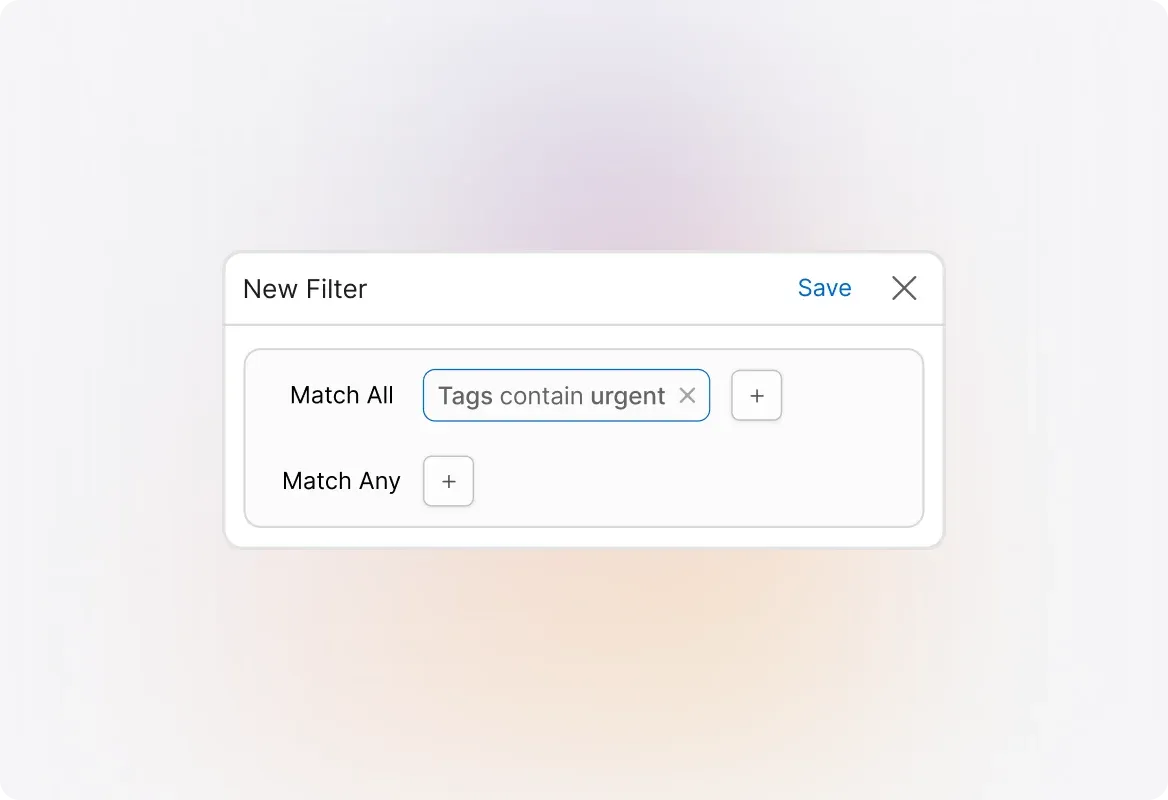
Use Tags for Filters and Queues
Tags aren't just labels—they're powerful filters. Use tags as conditions in your ticket queues and custom filters to instantly surface the tickets that matter most. Find what you need in seconds.
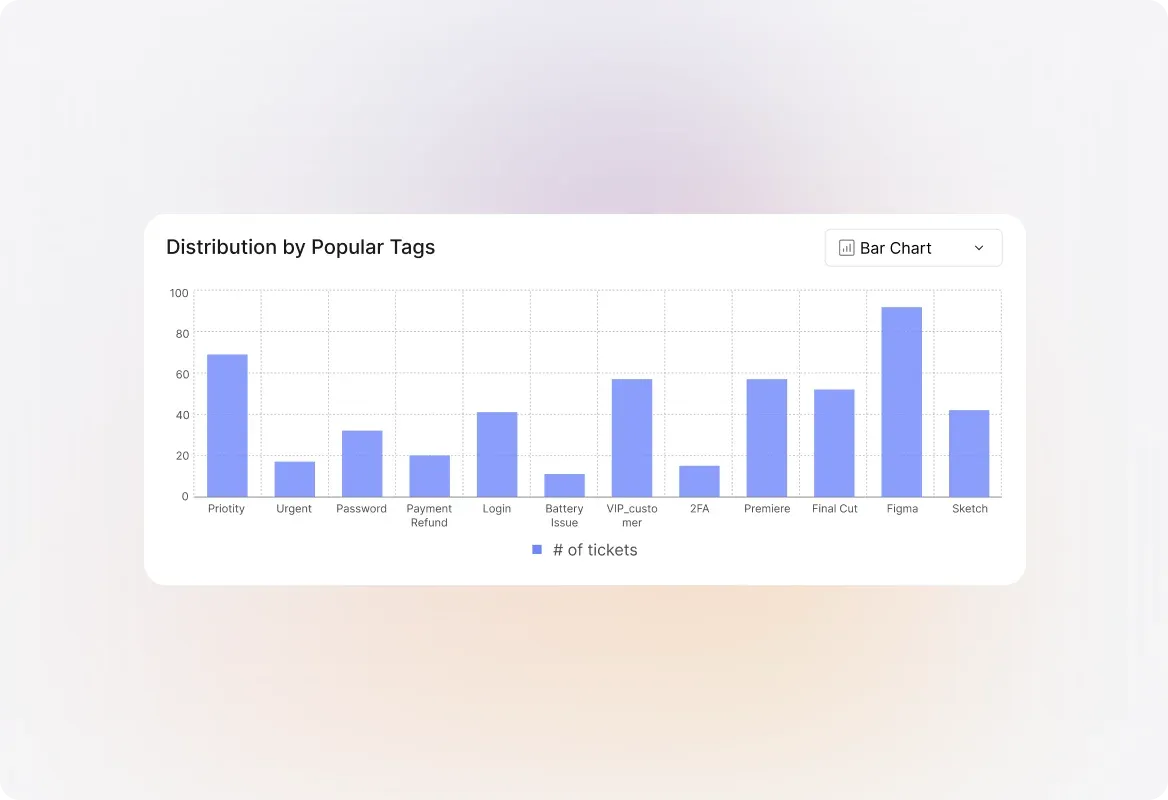
Generate Reports with Tags
Turn tags into insights. Use tagged tickets to generate reports that reveal patterns, track issue types, and measure team performance. Make data-driven decisions with ease.
Frequently asked questions.
What are Ticket Tags?
Ticket Tags are labels you can add to tickets to categorize, group, and identify them easily. They help organize your support queue and can be used for filtering tickets, setting up automation workflows, and generating reports.
How can I add tags to a ticket?
There are three ways to add tags: manually from the ticket details page, automatically through canned actions when agents apply pre-saved responses, or through Smart Rules that tag tickets based on predefined conditions.
What tag management options are available?
You have full control over your tags. You can create new tags, rename existing ones for better clarity, merge duplicate tags to consolidate your tagging system, detach tags from specific tickets, or delete tags that are no longer needed.
Can tags be used in automation workflows?
Yes! Tags can be used as conditions in Smart Rules and automation workflows. You can trigger specific actions based on whether a ticket has certain tags, making your automations more precise and powerful.
Who can create and manage tags?
Tag management is typically controlled through role-based permissions. Administrators can configure which team members have the ability to create new tags, add existing tags to tickets, or remove tags. This ensures your tagging system stays organized and consistent while giving the right people the access they need.